My Own Creative Muse
Like the character Cameo in yesterday’s story, I feel like I have the voice of a “muse” in my mind that drives me to create. Unlike Cameo, I haven’t turned away from that voice completely, though I’ve gone through dry spells. Maybe that’s why the story came to me and made me examine the relationship between our thought lives and our real lives. And if you ever battle with the still, small voice like Elijah, maybe Cameo’s journey will be enjoyable for you as well.
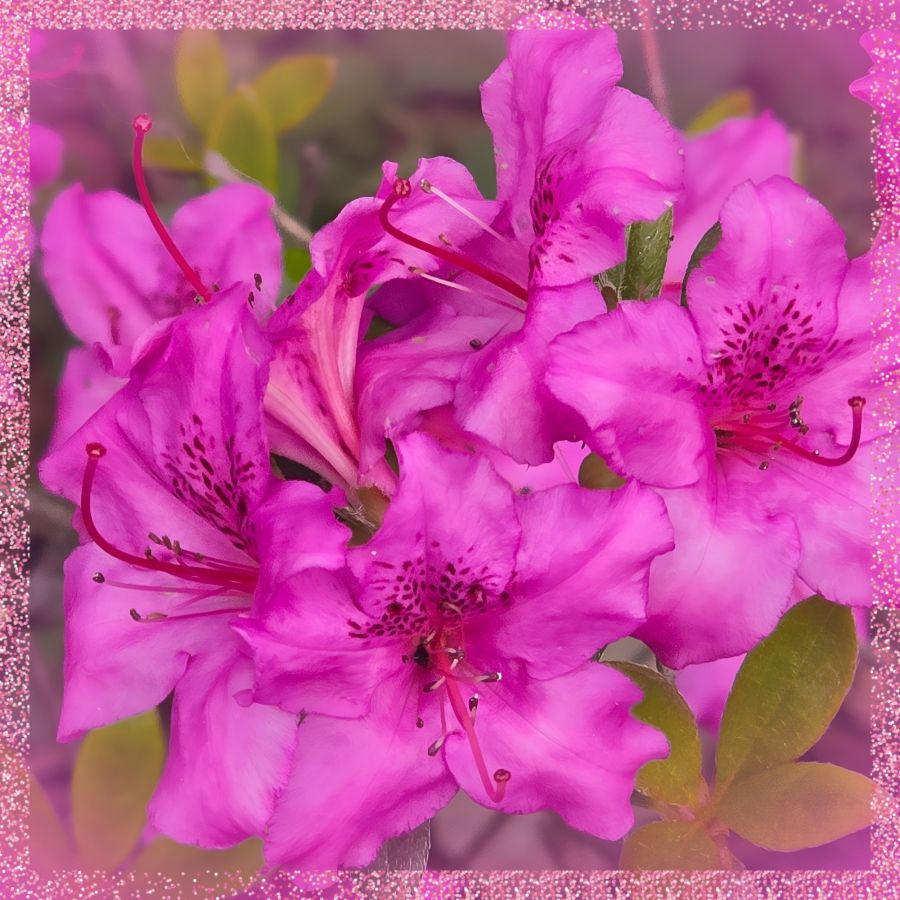
Though it’s not time to share more of her story yet, I want to share just a little from recent creative endeavors. The above photo is a close-up from the first good blooms on an azalea plant hubby got for me a few years ago. He did the research to find out what would make it grow, and it paid off well. I’m thrilled with the plant and with the pictures. I added a sparkly frame on this one because I knew how it would affect the images I got from Wombo Dream AI. Get ready for a barrage of pink and full instructions for any why might want to try designing images in Wombo.
So my first stop was to their browser page because they recently updated it with a new “edit” button. You can upload an image, and then tell it how you want it edited. Maybe you want the flowers in purple or the sky in green. Put your thoughts in the prompt box, and let it go to work. I told it I wanted the image in stained glass. The outputs were the same in the app as in the browser, so here are some from the app before I added the frame…
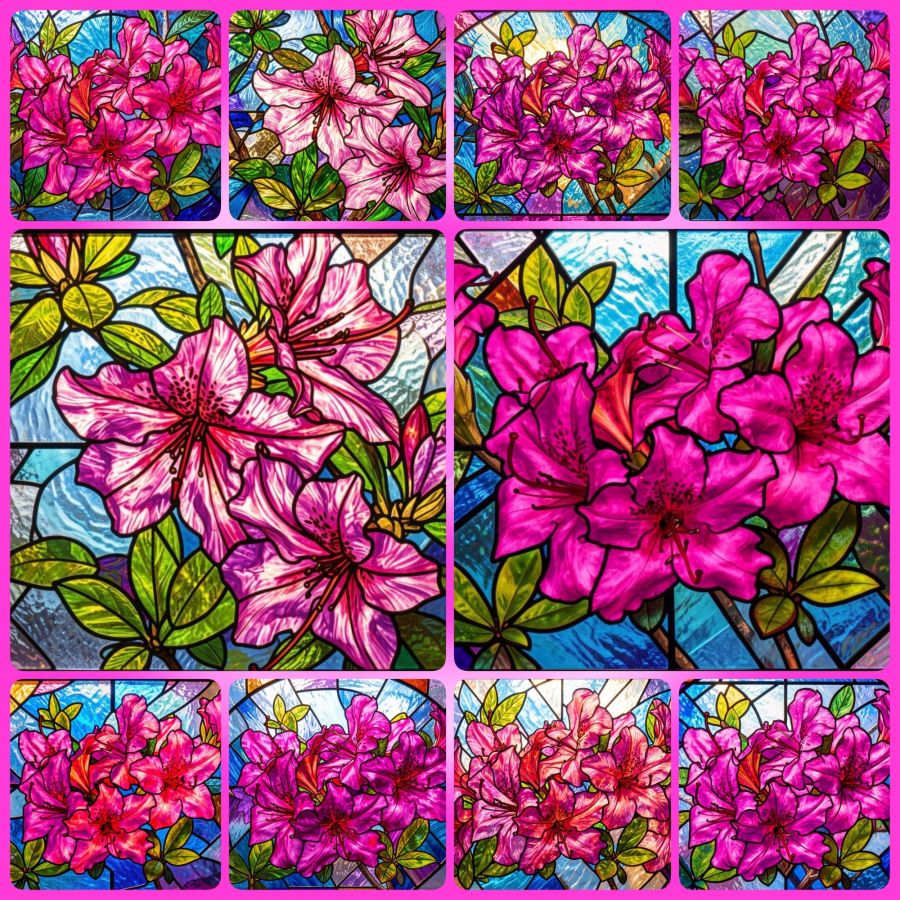
You can visit the website without downloading the app, so you can make your own fun edits at https://dream.ai/ and click on the “Start Creating” button. On the creation page, you can use my prompt (below) if you like, or create your own. When you add a prompt, you’ll notice a button that says enhance. That button will add some fancy extra prompts that are well trained into the AI. Once you have the prompt you want, it’s time to select a filter. Anything that doesn’t say “Premium” is okay to use. The latest filters are V4, and the V3 filters also work well. Once your filter is selected, you can choose generate to make your picture. It will download with a watermark if you don’t have premium, but it’s not bad and may be able to be cropped out in another program if it really bothers you. Here’s the prompt…
Turn these beautiful magenta azaleas into a stained glass window.
This is just the beginning of what you can do. You’ll notice you have image sizes to choose from in case you want to make a phone wallpaper size or a Facebook header size. And then you can look toward the bottom for the browse button where you can upload your own image. Or mine if you’ve downloaded it. That’s why I make most of my images Creative Commons. At some point, the page may ask you to create an account in order to download your images. I’m not sure if the gallery to store your images comes with every account, or only on the app, but having lost a number of gallery photos when they crashed last year, I recommend actually saving your favorites to a permanent location.
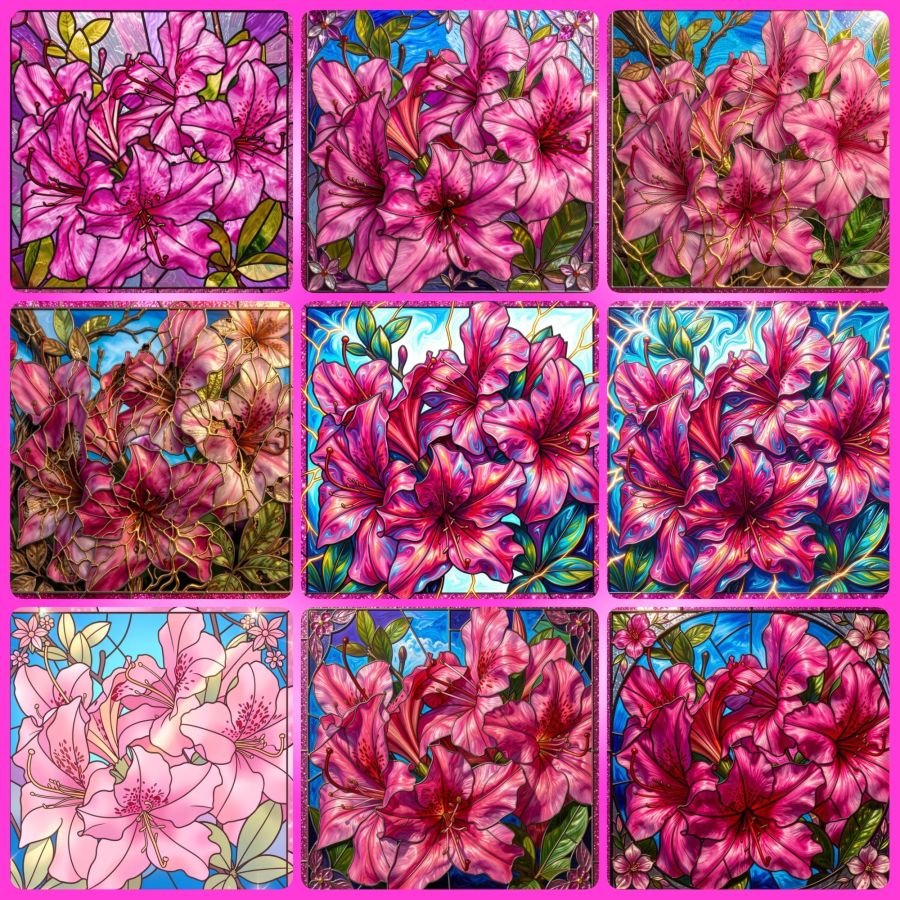
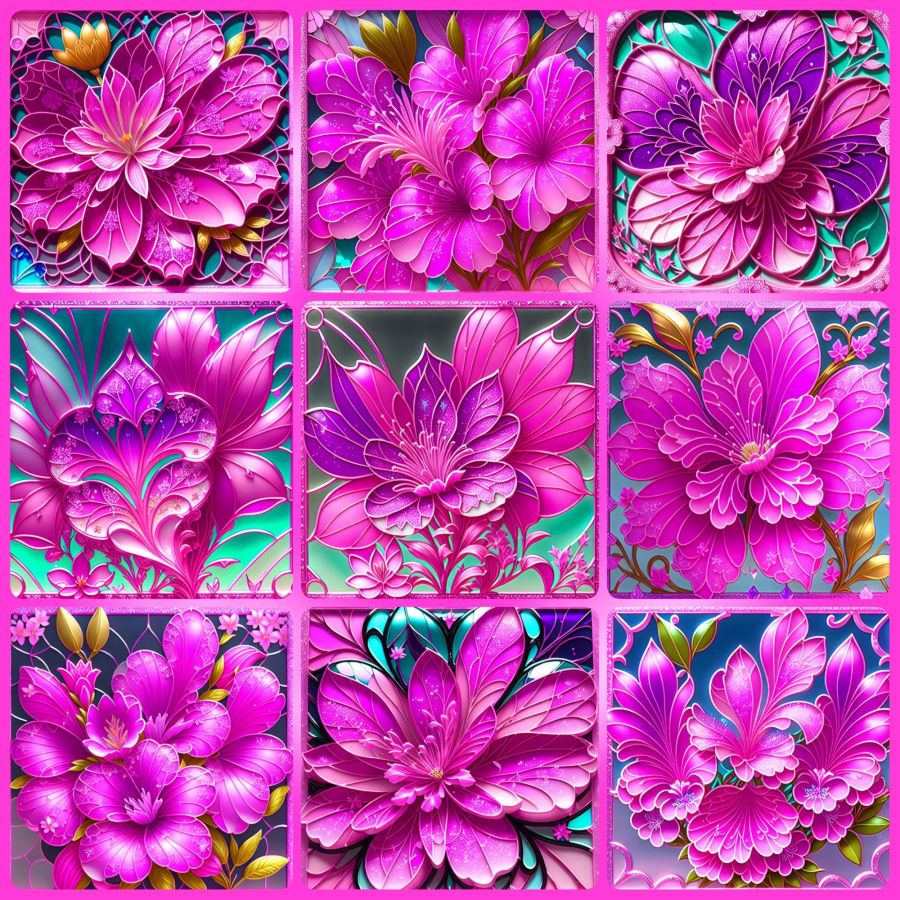
Now, because I’m a fan of abstract creations, there is a V2 filter I go to often. I’ll share the collage and prompt for that, and I hope to hear from readers that you’ve tried this for yourself and had as much fun with it as I do. The prompt (for use with the image at the top and with their enhanced additions) is…
Turn this into a beautiful stained glass window with the original magenta pink azalea and pink glitter frame colors intact. Intricate lead lines separating vibrant glass pieces, sunlight streaming through to cast colorful reflections, delicate floral motifs surrounding the azalea, subtle gradients blending pinks and purples, the window set against a softly illuminated stone wall, enhanced by shimmering highlights on the glitter frame that catch the light at different angles.
And here are the images…
Share this post on:

No comments yet.
My Latest Flickr Photos


Others’ Posts I’ve Liked


Start a conversation by adding your comments.