The Chaos of Learning New Things (and how Gemini AI can help)…

I love learning! I’ve often compared myself to Johnny 5 from the movie Short Circuit because of my desire for more and more input. But the older I get, the harder it is to process that input as smoothly as before. Plus, with technology, I think confusion and chaos come standard.
One of the biggest problems, though, is the lack of help sources. It used to be that search engines could direct you to just the right place for the answers you needed, albeit sometimes they were several pages deep. Still, if you had a math question, you could find an answer from a mathematician. If you needed a recipe, you could find a cooking site. But now, the answers you get are based on sponsorships and marketing.
Tonight, I needed to install an app for my digital thermostat, and the info on the booklet didn’t match the updated app in the Google Play Store. In addition, the review score there was 2.5 with lots of complaints about how the new app wasn’t as good as the old one. What’s a girl to do with all that confusing information?
Well, my newest phone offered me a free one year trial of Gemini Pro by Google. I’ve had a few AI conversations with Copilot and a Bible AI search, but when I noticed how easy it was to feel like I was talking to a human, I decided to limit conversations to needs that couldn’t be met by searching. Well, except for image generation. I love being able to create things I can imagine but could never draw. But that’s a share for another day.
So I went to Gemini and asked how to tackle my current dilemma. To my amazement, it knew about the negative reviews, the switch of apps, and even solutions that made all the difference — enough of a difference for me to install and use the app plus give it a 5-star rating. For example, once I told it the make of my thermostat, it knew the kind of servers and firmware in my device and recommended a 2.4g Wi-Fi signal to not overwhelm it. It knew that Wi-Fi guest networks were usually slower and confirmed I should put my phone on the same guest network until the install was set up. I admit, it was a little scary that it could turn off my cellphone provider’s data temporarily to make sure the devices stayed on a matched service, but it saved me a step. And almost everything it told me to do worked perfectly, so I had none of the issues the complaining reviews mentioned. I felt so victorious when I accomplished that task.
Finally, when everything was done, it asked if I wanted help drafting a review for those new to the app who were only seeing negative reviews and complaints. It gave me a long, detailed review, but I had to tell it to keep it under 500 characters for Google Play Store reviews. I was a bit surprised it didn’t know that. Anyway, I tweaked it a bit, but it made me feel so good to be able to post a high rating since anyone using the app with a new Carrier system needs to know they can trust it to work as it’s supposed to work. It’s hard to trust, and learn something new, when you’re awash in negative reviews and mismatched paperwork. I’ll post the review for the “SmartHome by Carrier Corporation” app in case some of the steps I took might work for other modern tech devices as well. Maybe this will have the answer for someone out there.
With Gemini’s help, I made this work. It works great on the 2026 firmware update and the app 2026 update if you follow these steps for manual setup.
1. Connect wall unit to 2.4GHz/Guest WiFi & put device with app on the same 2.4 signal. IMPT: Do the firmware update first & let it finish (Carrier logo on screen).
2. Skip the QR scan—it fails.
3. In the app, choose “Infinity System” (NOT Smart Thermostat).
4. Use “Manual Entry” for Serial/MAC/PIN from the wall unit’s Wireless > MyInfinity menu.
It’s hard to put that many details in 500 characters, but my personality of always wanting to be helpful hopes it will enable some who failed in the task to now accomplish it. And if my readers cannot use all the info, at least maybe you’ve learned that your Wi-Fi guest network is not likely 5GHz and that 2 devices wishing to communicate should not only be on the same Wi-Fi network, but also at the same speed.
Share this post on:

I’ve Looked at Clouds

I almost decided to find the video for Both Sides Now to place here since it goes well with the title. 🙂 Besides, I haven’t really looked at all clouds from both sides now or before. I have looked enough to share a little about them for Tech Time Tuesday, though.
A friend recently found out she has a cloud account with her cellphone, but she wasn’t sure what that meant. It’s not the first time someone has asked me what a cloud account is, so I thought that would be a good topic to cover for today. First, a definition from Wikipedia (slightly edited)…
A file hosting service, cloud storage service, online file storage provider, or cyberlocker is an Internet hosting service specifically designed to host user files. It allows users to upload files that can then be accessed over the internet from different computers, tablets, smartphones or other networked devices.
In simple terms, just like a cloud can move through the sky unfettered, the information you store in a virtual cloud is not restricted to one location. It is the very definition of portable, but it’s more like having a portable safe that you don’t have to physically carry around with you.
I have a personal cloud storage device that allows me to store documents, pictures, music, and other media for use wherever I may install the software and provide the password and other information. That means, if I don’t have enough space on my phone or tablet for all my pics and music, I can still show them off by simply accessing them through the cloud.
In addition to being able to own a personal storage device, such as the Western Digital My Cloud drive that connects to your home network, you can use the storage capabilities of companies with large storage spaces available to multiple users. One of the most well known (other than web-based email, photo sharing, and blog hosting sites) is Amazon through the Amazon music service. Whatever music you purchase from Amazon, you can play on your phone, computer, tablet (especially Kindle Fire) or any TV into which you can connect a streaming device like Amazon Fire TV, Google Chromecast, Roku, Apple TV. etc., if that device can access Amazon applications. Amazon also stores photos,videos, and documents. (Amazon links here include a short link through my affiliate account, and they are safe.)
There are many other cloud services, some of which you may already be familiar with, and some you may not. You can search and read reviews for security and best prices, but whatever you choose, make sure the site has an “https” in front of the URL (the part that often starts with a www and ends with a dot com). The “s” in the name means the site is secure, so others cannot access what you store there without logging in. Here are a few sites I have used…
- Dropbox — Has applications for PC and mobile phones and tablets. Often comes preinstalled on phones and offers high storage content for limited times.
- Google Drive — Connected to a Google (Gmail) account and can be accessed by invitation for collaborative editing in edition to storage.
- Evernote — Great site for storing your bookmarks, recipes, images, and many other things you want to remember from your Internet visits. My favorite task for Evernote is that I can highlight a portion of a page and save just the highlighted selection, the whole page, or just a screenshot of what is currently viewable. Evernote also has a phone application that works with the sharing function.
- OneDrive — This is from Microsoft and has generous storage amounts if you are a user of Office 365.
You will notice that the links for each site I’ve given above begin with the https I mentioned earlier. Right-click on any link and copy the link onto a Notepad or other text document if you’d like to view the link before you visit it. I’ll tell you more about safe clicks next week, but for now, this Tech Time Tuesday article is long enough.
Share this post on:

Creative Images & Fun Apps
In my effort to blog daily, I’m finding myself taking more time than I plan ahead and ending up far later at night than planned, but I’m gonna stick with this. That said, here’s my Tech Time Tuesday submission.
I love to play with graphic programs and apps, especially if they make colorful and kaleidoscopic designs. The designs themselves are a bit of technology, but to stick with a true techy theme, I’ll share just a few of the apps and sites I use to create and have fun.
For starters, because of copyright laws, I suggest always using your own images as a base to create from. That means you’ll need some kind of camera, and the higher quality images you start with, the higher quality graphics you’ll end up with. If you just cannot find anything of your own to use, make sure you use something with a Creative Commons.org license that does not prevent derivative images. (See the CC site link above for explanations of the various licenses.) And if the CC license requires anything (such as attribution–giving credit to the original photographer, or share-alike–repeating the same CC license in your final product), be sure to uphold such requests.
I put together this mosaic of designs from the images I created from the top left picture of a stack of colored chains. The pink, black, and white chains were actually a necklace, and I was very happy with the colorful designs I was able to make. Here’s my mosaic from the creative and fun website called Big Huge Labs…
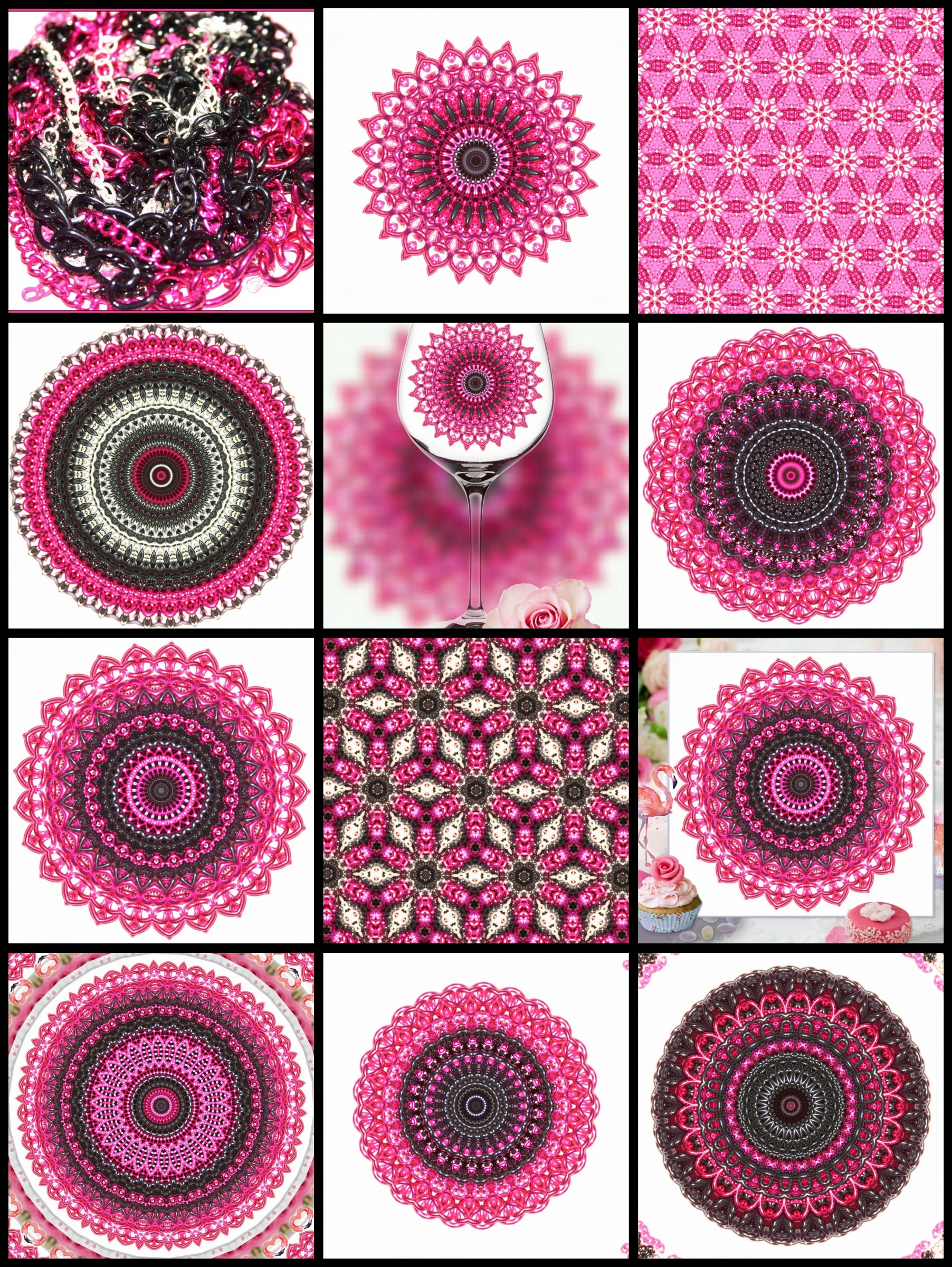
Necklace Kaleidoscope Mosaic
Now for the technical part. (Note: I’ll add links to make it easier for readers to find the sites. Also, know that links to Amazon are short links with my affiliate information. If you decide to purchase from Amazon, it helps me a little if you use my links. Thanks.
First, I used an app called “Kaleidoscope Lime Pro” that I downloaded from the Google Play Store to make the circular mandala designs as well as the tiled tessellation designs. I love how one picture can create so many images, and I play with this app often when I’m waiting somewhere with my phone. There is a free version of the app, but for 99 cents, I found it worth supporting the developer to continue to make quality apps such as this. I have used it on both a Samsung Galaxy Note 3 and Note 5, and both worked perfectly. You may even find my Note 3 review when you view the app.
Next, I used a slightly newer app I’ve had since May called “Photo Studio Pro” that I got from the Amazon App Store. I also opted for the pro version on this to support the KVAD developer and to have access to all the extra options. The PIP (picture in picture) options just came out recently, and that is what made the image above where you see my original kaleidoscope mandala inside a glass with a flower at the bottom. The image above with the cupcakes is done with one of the KVAD frames.
And that’s about it for this Tech Time Tuesday. Download some apps, make some images, and upload them to a safe site like Flickr or Google+, then come back and share some links with me. If the sites and images are safe, clean, and family friendly, I will approve your comments so others can visit your images too.
Share this post on:

My Latest Flickr Photos


Others’ Posts I’ve Liked


 Crystal Writes A Blog